










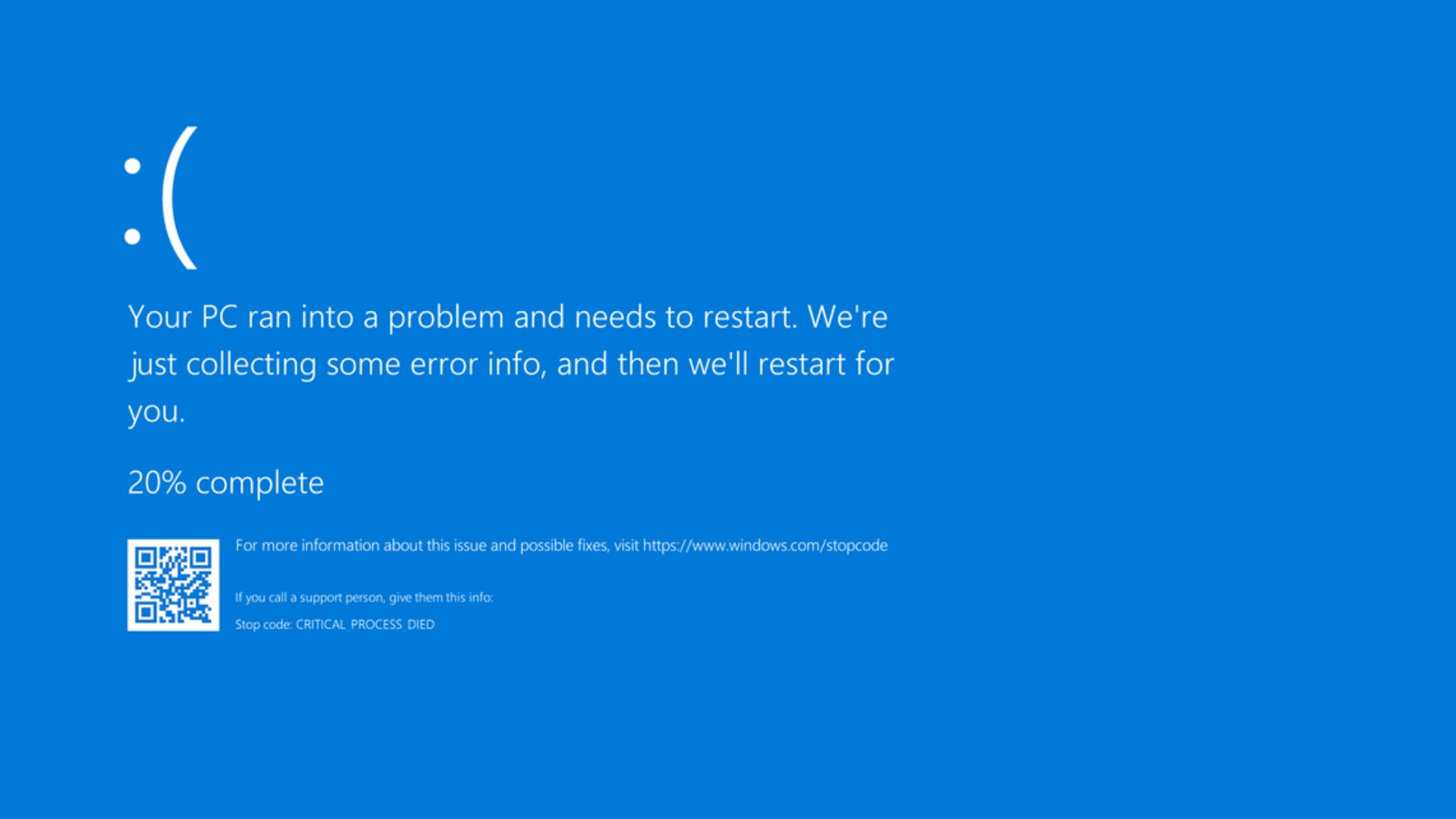
IT issues are inevitable, whether you’re dealing with network problems, software glitches, or hardware failures. However, being able to troubleshoot and resolve these issues quickly is essential for minimizing downtime and ensuring smooth business operations. In this article, we’ll walk you through how to troubleshoot IT issues effectively, from identifying the problem to implementing a solution.
1. Identify the Problem
Before you can resolve any IT issue, you need to clearly define what the problem is. Start by gathering information from the affected system and users. The more data you collect, the easier it will be to pinpoint the cause.
-
Why It’s Important:
Understanding the issue is crucial for finding the right solution. Vague or incomplete descriptions of the problem will only lead to misdiagnosis and wasted time. -
How to Do It:
Ask the user specific questions:-
What exactly is not working?
-
When did the problem start?
-
Did anything change recently (e.g., software updates, new hardware)?
-
Are there any error messages?
Tip: Keep track of the symptoms and be sure to note any recent changes or updates made to the system.
-
By gathering as much detail as possible, you can start to narrow down potential causes and avoid unnecessary troubleshooting steps.
2. Isolate the Issue
Once you have identified the problem, it’s time to isolate it. Try to determine if the issue is hardware-related, software-related, or network-related. This helps you avoid wasting time on areas that are not part of the issue.
-
Why It’s Important:
Isolating the issue early helps you focus your efforts. If you suspect it’s a hardware problem, you won’t spend time troubleshooting software, and vice versa. -
How to Do It:
-
Hardware: Check if the hardware is properly connected and powered on. If the problem is a device not working (e.g., a printer or monitor), try using it on a different computer or try a different cable.
-
Software: If it’s software-related, determine whether the issue is with a specific application or the operating system itself. You may need to check for software conflicts, corrupt files, or outdated drivers.
-
Network: If it’s a network issue, check whether other devices are affected. Are other users experiencing the same problem? Try restarting the router or checking the network status.
-
This process helps you avoid wasting time troubleshooting parts of the system that aren’t causing the issue.
3. Check for Common Issues
Often, IT issues arise from common, easily overlooked problems. These issues may be simple but can cause frustration if not addressed early.
-
Why It’s Important:
Starting with common fixes ensures that you don’t overlook basic solutions that could solve the problem quickly. -
How to Do It:
-
Restart the System: Many IT problems can be solved by restarting the affected device or application. This refreshes the system and clears any temporary glitches.
-
Check Connections: Ensure all cables, connections, and network settings are correct. Loose cables, unplugged devices, or incorrect IP addresses can cause big issues.
-
Software Updates: Check if there are any pending updates for the operating system or software applications. Sometimes issues arise simply because the software is outdated.
-
Check for Malware: Malware or viruses can cause unexpected behavior. Run a quick antivirus scan to rule out any security threats.
-
By covering these common issues, you can resolve simple problems without needing more advanced troubleshooting.

4. Reproduce the Issue
If the issue is not immediately clear, try to reproduce it. This step can help you see the problem firsthand and understand its scope better.
-
Why It’s Important:
Reproducing the issue helps you verify that the problem exists and allows you to test potential fixes before implementing them. -
How to Do It:
-
Try to repeat the steps that led to the issue in the first place.
-
If it’s a software or application issue, perform the same actions (e.g., opening a file, running a program) and see if the error occurs again.
-
If it’s a network issue, check if the connection drops again by reconnecting to the network.
-
By recreating the problem, you can confirm the symptoms and gain a better understanding of the root cause.
5. Check System Logs
Most modern systems have logs that record various events, including errors, system crashes, and application failures. Reviewing these logs can provide critical insights into what’s causing the issue.
-
Why It’s Important:
Logs often contain detailed information about system operations, which can help you trace the root cause of the issue. -
How to Do It:
-
Windows: Open the Event Viewer to check for any error messages or system warnings. Look for patterns or repeated events that align with the time the issue occurred.
-
Mac: Use the Console app to view system logs and identify potential issues.
-
Network Devices: Routers, firewalls, and switches usually maintain logs that can provide information about connectivity or configuration issues.
-
By reviewing logs, you can often pinpoint the specific cause of the issue and identify any system anomalies.
6. Test Potential Solutions
Once you’ve identified the issue and gathered enough data, it’s time to test potential solutions. Start with the simplest fixes and move to more complex ones if necessary.
-
Why It’s Important:
Testing different solutions in a logical order allows you to find the fix without unnecessarily complicating the process. -
How to Do It:
-
Hardware Issues: If it’s a hardware issue, test by swapping out components like cables, peripherals, or even the hardware device itself.
-
Software Issues: If it’s a software-related problem, try reinstalling the application or running repair tools. For system-wide issues, try using built-in troubleshooters or performing a system restore.
-
Network Issues: If it’s a network problem, try resetting network equipment like routers, modems, or switches. Check if your network settings are correctly configured, including IP addresses and DNS servers.
-
By systematically testing different solutions, you increase your chances of finding the right fix quickly.
7. Seek External Support
If you’ve exhausted all troubleshooting steps and the issue persists, it may be time to seek external support. Reaching out to technical support teams or online communities can provide additional insights and solutions.
-
Why It’s Important:
Some issues require advanced troubleshooting or specialized knowledge. External support can help resolve problems that go beyond your expertise or available tools. -
How to Do It:
-
Contact the IT support team of the software or hardware manufacturer for assistance.
-
Use online forums or support communities to ask questions or find similar issues. Websites like Stack Overflow or Reddit often have valuable troubleshooting tips.
-
If it’s a major system issue, you might need to consult an IT professional or technician.
-
When you hit a roadblock, seeking expert help can save time and ensure that the issue is resolved properly.
8. Document the Process
After resolving the issue, make sure to document the steps you took during troubleshooting. This documentation can serve as a reference for future problems and help you track recurring issues.
-
Why It’s Important:
Having a record of troubleshooting steps can speed up resolution for similar issues in the future and provide a learning tool for the team. -
How to Do It:
Record the issue, symptoms, steps taken, and the final solution in a shared document or knowledge base. Include any logs or error messages for reference.
Documenting the process creates a knowledge base that helps you troubleshoot more efficiently next time.
Conclusion
Troubleshooting IT issues can be challenging, but with a systematic approach, you can resolve problems quickly and effectively. By identifying the problem, isolating its cause, and testing potential solutions, you’ll increase your chances of finding a resolution. And if all else fails, don’t hesitate to reach out for support. With practice and the right tools, you can minimize downtime and keep your IT systems running smoothly.


