











If you’re an architect, designer, or engineer working with demanding CAD and 3D architectural tools like AutoCAD, Revit, Rhino, or SketchUp, you know performance matters. A slow machine means wasted time, sluggish workflows, and limited creative flexibility. Instead of settling for a generic workstation, building a custom PC gives you the power to tailor performance to your specific software needs, save on unnecessary features, and get better long-term value. This guide walks you through the essential components, performance considerations, and recommended specs for building a custom PC that can handle intensive architectural workloads with ease.
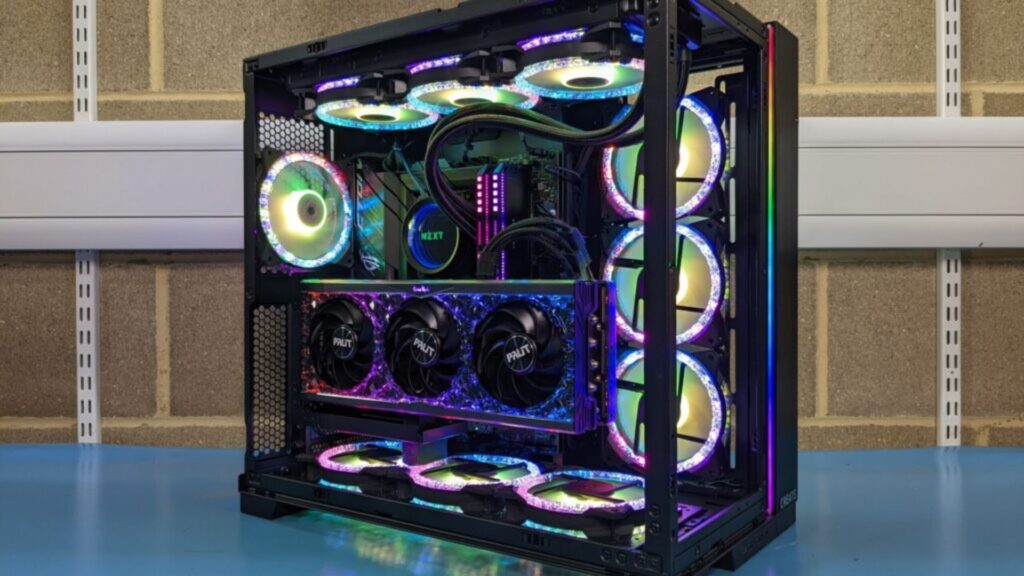
Why Build a Custom PC for CAD?
-
Performance Tuning: You choose parts optimized for your workflow.
-
Cost Efficiency: Avoid paying for features you don’t need.
-
Upgrade Flexibility: Easy to scale or replace parts later.
-
Thermal Efficiency: Better airflow and cooling options for stable performance under load.
Whether you’re doing 2D drafting or full 3D visualization with real-time rendering, your PC should reflect the intensity of your tasks.
Key Components and Specifications
Here’s a breakdown of each critical component and how it impacts CAD and architectural software performance:
CPU (Processor)
Most Important For: 2D drafting, general modeling, BIM
CAD applications like AutoCAD, Revit, and Archicad are typically single-threaded, meaning high clock speed is more important than core count.
✅ Recommended:
-
Intel Core i7 / i9 (13th or 14th Gen) – Great single-core performance
-
AMD Ryzen 7 / Ryzen 9 (7000 series) – Excellent multi-purpose CAD/3D support
Clock Speed: Aim for 4.5 GHz or higher
Cores: 6–16 cores depending on rendering needs
GPU (Graphics Card)
Most Important For: 3D modeling, rendering, visualization, VR
CAD and architectural rendering benefit greatly from a powerful GPU, especially for real-time rendering tools like Enscape, Lumion, and Twinmotion.
✅ Recommended:
-
NVIDIA RTX 4060 / 4070 / 4080 (for mid-to-high range)
-
NVIDIA RTX A2000 / A4000 (formerly Quadro – professional GPUs)
-
AMD Radeon Pro series (for Revit-certified workflows)
VRAM: Minimum 8GB for 3D projects; 12GB+ for heavy rendering
Ray Tracing: Ideal for real-time rendering engines (look for RTX support)
Motherboard
Choose a motherboard compatible with your CPU socket and chipset, with enough expansion slots and ports for future upgrades.
✅ Look For:
-
At least 2 M.2 slots for SSDs
-
4 DDR5 RAM slots
-
USB-C and Thunderbolt (if needed)
-
PCIe 4.0 or 5.0 support for next-gen GPUs
Brands like ASUS ProArt, MSI Tomahawk, and Gigabyte Vision are popular among professionals.
RAM (Memory)
Most Important For: Multitasking, large BIM models, rendering
CAD software typically requires 16–32GB of RAM, but large Revit or Rhino files can use more.
✅ Recommended:
-
32GB DDR5 RAM (preferred)
-
Upgradeable to 64GB+ for future-proofing
Faster RAM (higher MHz) helps with smooth performance, especially when working across multiple applications.
Storage
SSD is non-negotiable for fast boot times, file access, and smoother model manipulation.
✅ Recommended Setup:
-
Primary Drive: 1TB NVMe M.2 SSD (OS + applications)
-
Secondary Drive: 2TB SATA SSD or HDD (project files, backups)
Projects involving rendering or large BIM files benefit from fast read/write speeds.
Cooling System
Rendering and simulation can push your CPU and GPU to their limits. Proper cooling is essential to maintain consistent performance.
✅ Choose:
-
High-quality air cooler (e.g., Noctua NH-D15)
-
OR AIO liquid cooling system (240mm or 360mm)
-
Case with good airflow and dust filters
Power Supply Unit (PSU)
Choose a reliable, 80+ Gold certified PSU with enough headroom for future upgrades.
✅ Recommended:
-
650W–850W for most builds
-
Modular or semi-modular design for cable management
Monitor (Optional, but Important)
Color accuracy and resolution matter for architectural visualization.
✅ Best Choices:
-
27″–32″ 4K IPS monitors (e.g., Dell UltraSharp, ASUS ProArt)
-
At least 99% sRGB or AdobeRGB support
-
Dual-monitor setup improves productivity
Sample Build – Mid to High-End (2025)
| Component | Recommendation |
|---|---|
| CPU | Intel Core i7-14700K |
| GPU | NVIDIA RTX 4070 Super |
| RAM | 32GB DDR5 6000MHz |
| Storage | 1TB NVMe SSD + 2TB SATA SSD |
| Motherboard | ASUS ProArt Z790-Creator |
| Cooling | Noctua NH-U12A (air) or Corsair H100i |
| PSU | Corsair RM850x (850W, 80+ Gold) |
| Case | Fractal Design Meshify 2 |
This build can handle AutoCAD, Revit, Rhino, Enscape, V-Ray, and Lumion with excellent performance and future scalability.
Conclusion
Building a custom PC for CAD and architectural software is a strategic move—one that empowers you with speed, efficiency, and long-term value. By investing in components aligned with your workflow, you eliminate bottlenecks, increase productivity, and create a machine that can evolve with your projects.
Whether you’re a solo architect, part of a design team, or running a creative studio, the right hardware can turn technical tools into creative powerhouses.


