


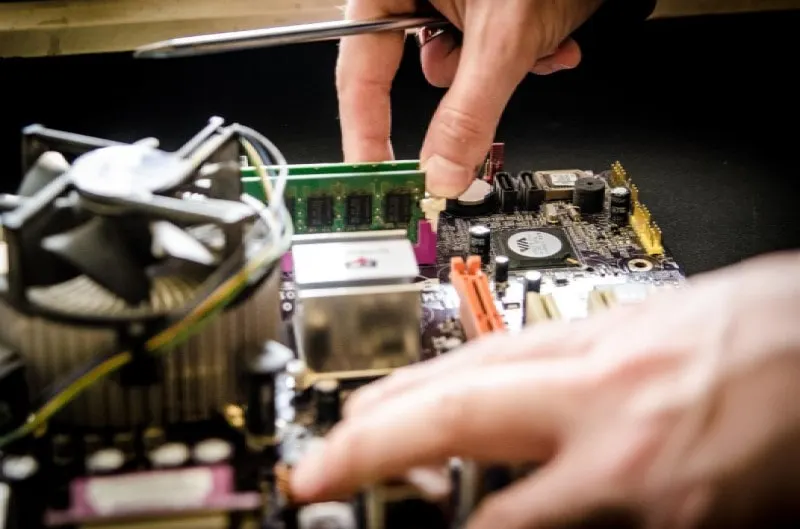
Computer hardware is essential for smooth system performance, but issues can occur over time. From slow performance to unexpected crashes, hardware problems can affect productivity and user experience. Understanding common issues and their solutions helps you maintain your system and prevent long-term damage.
Slow Performance
A slow computer is often caused by insufficient RAM, a failing hard drive, or an outdated CPU. To fix this:
-
Upgrade RAM: Increasing memory allows your system to handle more tasks simultaneously.
-
Switch to SSD: Solid-state drives provide faster boot times and quicker file access.
-
Check CPU Usage: Close unnecessary applications or consider upgrading to a faster processor.
Regularly cleaning up software and running system updates also improves overall speed.
Overheating
Overheating can cause crashes, freezes, and hardware damage. Common causes include dust buildup, poor ventilation, and failing fans. To resolve this issue:
-
Clean Components: Remove dust from fans, vents, and heatsinks.
-
Improve Airflow: Ensure proper spacing around the computer and use additional cooling if needed.
-
Replace Thermal Paste: Old or dried thermal paste on CPUs or GPUs can reduce heat transfer efficiency.
Monitoring temperatures using software tools helps identify overheating components early.
Graphic Display Issues
Display problems such as flickering screens, artifacts, or no signal are often related to GPU or cable issues. Fixes include:
-
Check Connections: Ensure cables are securely connected and free of damage.
-
Update Drivers: Outdated or corrupt graphics drivers can cause display issues.
-
Test GPU: Swap the graphics card in another system to confirm functionality.
For laptops, integrated graphics problems may require driver updates or professional repair.
Storage Failures
Hard drives and SSDs can fail, causing data loss or system instability. Signs include unusual noises, slow access, or frequent errors. To address this:
-
Run Disk Checks: Tools like CHKDSK or Disk Utility can identify errors.
-
Backup Data: Regular backups prevent permanent data loss.
-
Replace Failing Drives: If a drive shows repeated errors, replace it promptly.
Using SSDs for critical applications reduces the risk of mechanical failures.
Power Supply Problems
A faulty power supply can lead to random shutdowns, failure to boot, or damaged components. Solutions include:
-
Check Wattage: Ensure the power supply can handle your system’s requirements.
-
Inspect Cables: Replace frayed or loose power cables.
-
Test the PSU: Use a multimeter or PSU tester to verify voltage stability.
A high-quality, reliable power supply extends hardware lifespan and prevents issues.
Peripheral Malfunctions
Keyboards, mice, and other peripherals can stop working due to connection issues or driver problems. Troubleshoot by:
-
Reconnecting Devices: Unplug and reconnect peripherals.
-
Updating Drivers: Install the latest software from the manufacturer’s website.
-
Testing on Another System: Confirm whether the issue is with the device or the computer.
Proper maintenance, like cleaning keyboards and mice, also prevents common failures.
Conclusion
Hardware issues are common but manageable with the right knowledge. From slow performance and overheating to storage failures and peripheral problems, identifying the cause is the first step to a solution.
Regular maintenance, timely upgrades, and careful monitoring can prevent many issues. By understanding how to troubleshoot hardware effectively, you can keep your system running smoothly, efficiently, and reliably.


