






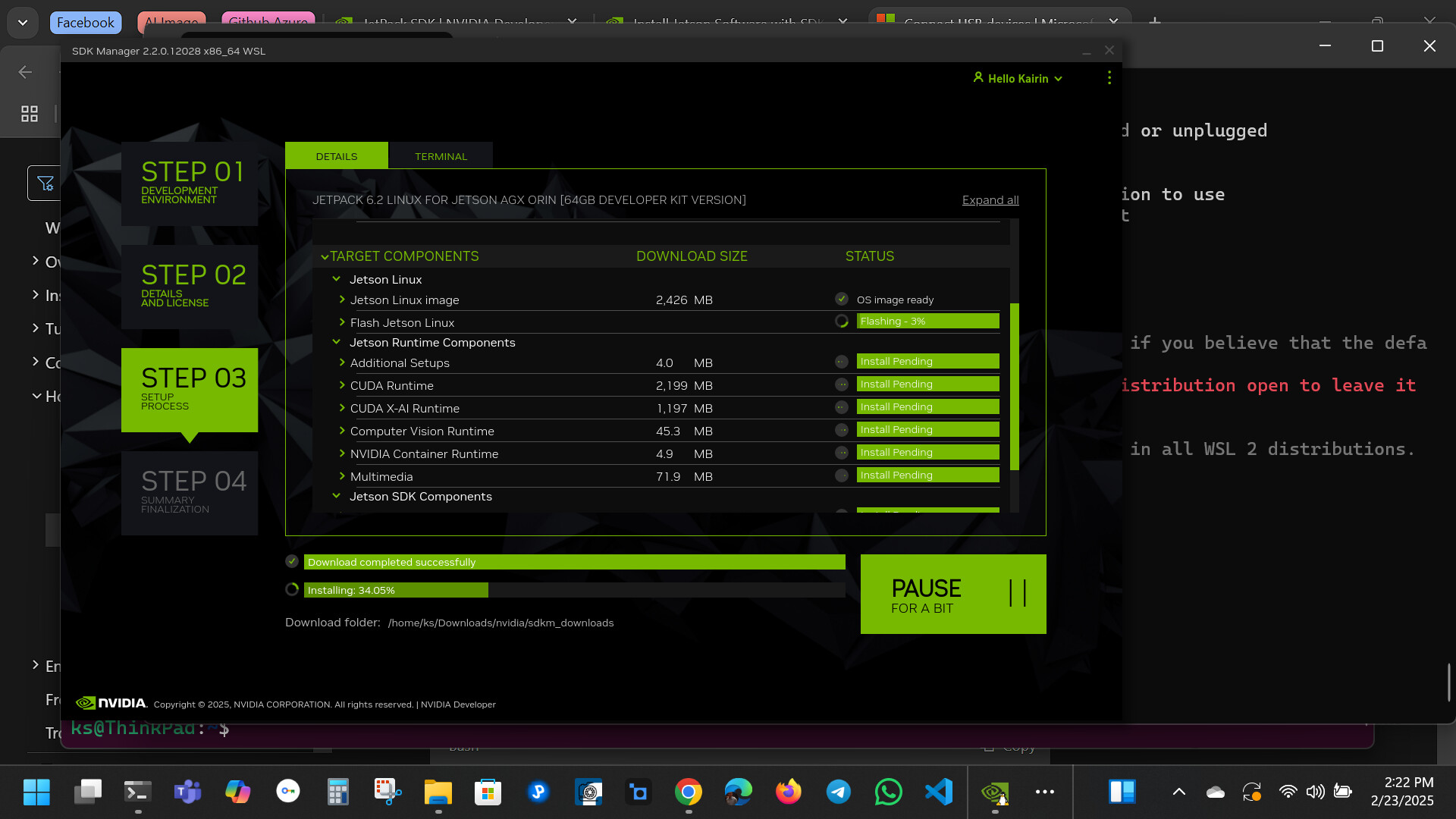
Installing software can be an exciting process, whether you’re setting up a new program or updating an existing one. However, it’s crucial to follow the right steps to ensure that your device and data remain secure. While most software installations are safe, there are risks involved, such as malware, adware, and even malicious software that can compromise your privacy.
In this guide, we’ll walk you through essential tips and best practices for installing software safely and protecting your devices from potential threats.
Why Is Safe Software Installation Important?
When you download software from unreliable or unofficial sources, you risk exposing your device to viruses, spyware, ransomware, and other types of malicious programs. Installing unsafe software can lead to data theft, loss of personal information, and severe system issues, such as crashes or slowdowns.
By taking a few precautionary measures, you can ensure that your software installations are as safe as possible and your device stays protected.
Steps to Install Software Safely
1. Download Software from Trusted Sources
Always download software from official websites, reputable app stores (e.g., Google Play Store, Apple App Store), or authorized third-party vendors. This significantly reduces the chances of downloading malicious software that might be bundled with viruses or malware.
Key Tips:
-
Avoid downloading software from unfamiliar websites or peer-to-peer sharing sites like torrents.
-
Official websites typically have “.com” or “.org” domain names, while fake sites may use misleading URLs.
-
Look for signs of legitimacy, such as “HTTPS” in the website URL and security certificates.
2. Verify the Publisher’s Identity
When installing software, check the publisher’s details to ensure that the program is coming from a trusted source. Many operating systems and browsers will show the publisher’s name during installation or when you click to open the file.
Key Tips:
-
If you’re unsure about the publisher, look up reviews, ratings, and forums to confirm that the software is legitimate.
-
Be wary of software claiming to be from well-known companies but using slight variations of their names (e.g., “Micosoft” instead of “Microsoft”).
3. Read the Terms and Conditions
While it may seem tedious, reading the terms and conditions (EULA) of the software is important. Many software programs bundle unwanted extras, such as toolbars, additional apps, or tracking software, which can compromise your privacy and security.
Key Tips:
-
Uncheck any options that opt you into installing additional programs or toolbars during the setup process.
-
Be cautious of agreements that ask for unnecessary permissions, such as access to your personal data or system settings.
4. Use Antivirus Software
Before you download any software, make sure your antivirus or anti-malware software is up-to-date. A good antivirus can help detect and block harmful files before they are installed.
Key Tips:
-
Run a system scan before installing new software, especially if you downloaded the installer from an unfamiliar source.
-
Ensure your antivirus software includes real-time protection, which alerts you if suspicious activity is detected during the installation process.
5. Check for Digital Signatures
Many legitimate software programs are signed with a digital certificate to verify their authenticity. Digital signatures ensure that the software hasn’t been tampered with since it was published by the developer.
Key Tips:
-
On Windows, right-click on the installer file, go to “Properties,” and check the “Digital Signatures” tab.
-
If the file doesn’t have a valid signature or it’s from an unknown source, reconsider installing it.
6. Use Sandbox or Virtual Machines for Testing
If you’re unsure about the software’s safety, consider running it in a sandbox or virtual machine. These tools allow you to test software in an isolated environment, preventing potential harm to your main operating system.
Key Tips:
-
Tools like Sandboxie or a virtual machine program (e.g., VirtualBox) can help you create a safe environment for testing.
-
If the software behaves as expected and is verified to be safe, you can install it on your main device.
7. Be Careful with Email Attachments or Links
Be cautious when installing software via email. Phishing attacks often use fake software installation links or attachments that lead to malicious downloads.
Key Tips:
-
Never download attachments or click on links from unknown or unsolicited emails.
-
If the email claims to be from a trusted source, verify the authenticity by contacting the company directly through their official channels.
8. Keep Your Operating System Updated
Ensure that your operating system (Windows, macOS, Linux) is always updated with the latest security patches and updates. Many security vulnerabilities are fixed through OS updates, so keeping your system up-to-date reduces the risk of being exploited by malicious software.
Key Tips:
-
Enable automatic updates for your operating system and applications to stay protected.
-
Regularly check for updates, especially after installing new software or if you’ve noticed performance issues.
9. Avoid Over-Permitting Software
When installing software, be mindful of the permissions you grant the program. If a piece of software asks for unnecessary access, like control over system files or personal data, think twice before allowing it.
Key Tips:
-
In some cases, you may be able to limit permissions, either by opting out of certain features or manually adjusting settings after installation.
-
If a program asks for unusual or excessive permissions, consider whether it’s essential for the program’s function or if it’s a red flag.
10. Create a System Backup Before Installation
Before installing any new software, it’s always a good idea to back up your system, especially if you’re installing complex or unverified software. This ensures that, in the event of a problem, you can restore your system to its previous state.
Key Tips:
-
Use tools like Windows Backup or Time Machine (for macOS) to create a full backup of your system.
-
Consider using cloud services or an external hard drive to store your backup securely.
How to Identify Malicious Software During Installation
Even after following all the best practices, it’s essential to know the red flags of malicious software:
Unexpected Pop-Ups
If the software installer is bombarding you with frequent pop-ups, it could be a sign of adware or other unwanted programs.
Unusual System Behavior
If your system starts behaving oddly after installing software (e.g., slower performance or unexpected crashes), run a virus scan immediately.
Too Good to Be True
If the software promises features or services that seem too good to be true (e.g., free premium software), it’s worth investigating further before proceeding with the installation.
Conclusion: Protect Your Device and Data
Installing software safely is a crucial part of maintaining your system’s health and security. By following these best practices—downloading from trusted sources, verifying the publisher, reading terms and conditions, and using antivirus software—you can significantly reduce the risk of installing harmful software.
Remember, caution and vigilance are your best allies when it comes to installing software. By taking the time to follow these steps, you’ll protect both your device and personal data from unnecessary risks and enjoy a smoother, safer computing experience.


